My old laptop came preloaded with Windows 11 Home. For casual browsing, totally fine. But the day I needed to remote into my office PC while traveling, I hit a wall fast. Windows 11 Home doesn’t let you host a Remote Desktop connection. That one limitation cost me two hours of frantic troubleshooting before a colleague pointed me toward Windows 11 Pro. That was my wake-up call.
If you’re in a similar situation, or just building a new PC and want to skip the subscription nonsense, this deal on StackSocial is worth knowing about. Get Lifetime Deals
What is Microsoft Windows 11 Pro?
Windows 11 Pro is Microsoft’s professional-grade operating system, sitting one tier above the standard Home edition that ships on most consumer laptops. It’s designed for freelancers, remote workers, developers, and small business owners who need more than the basics.
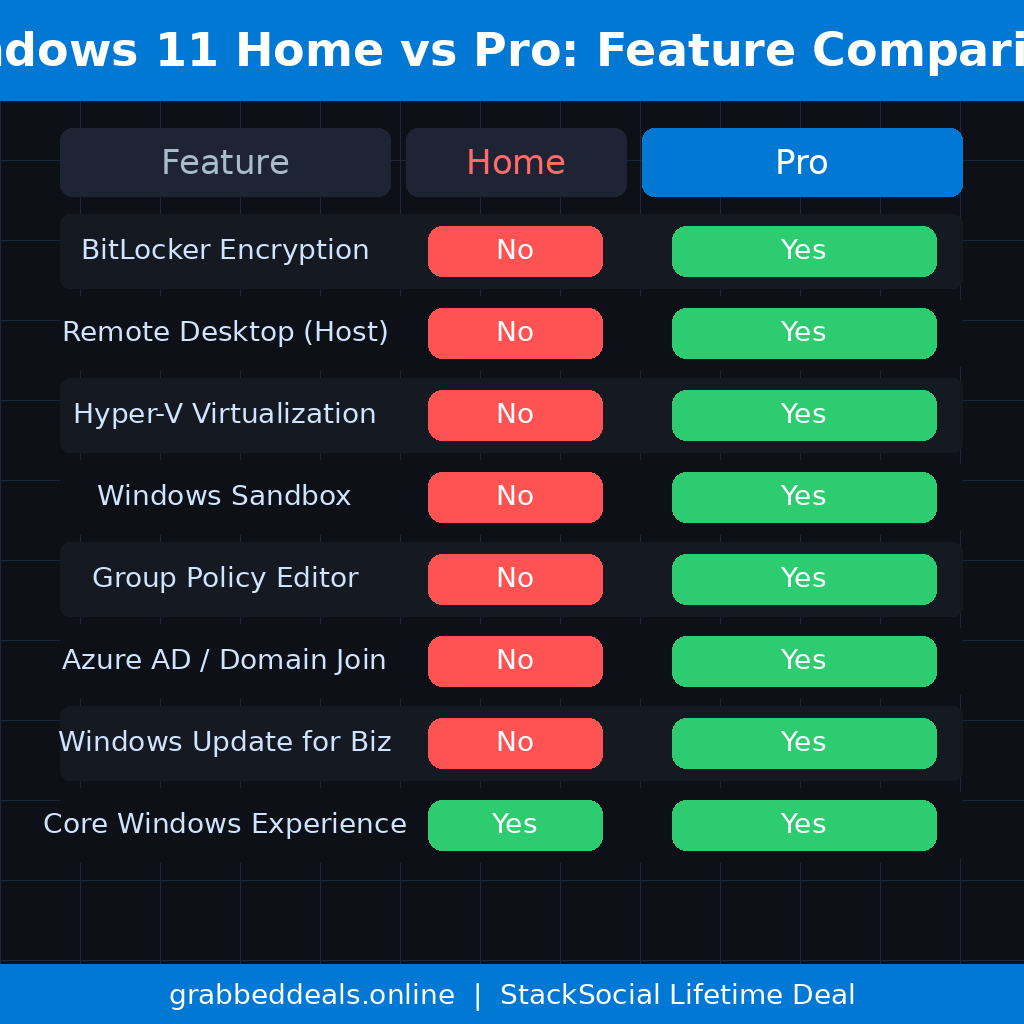
The core Windows 11 experience is identical between both editions: the same Start menu, the same interface, the same Copilot integration. What Pro adds on top is a layer of tools that most power users eventually end up needing, sometimes sooner than they expect.
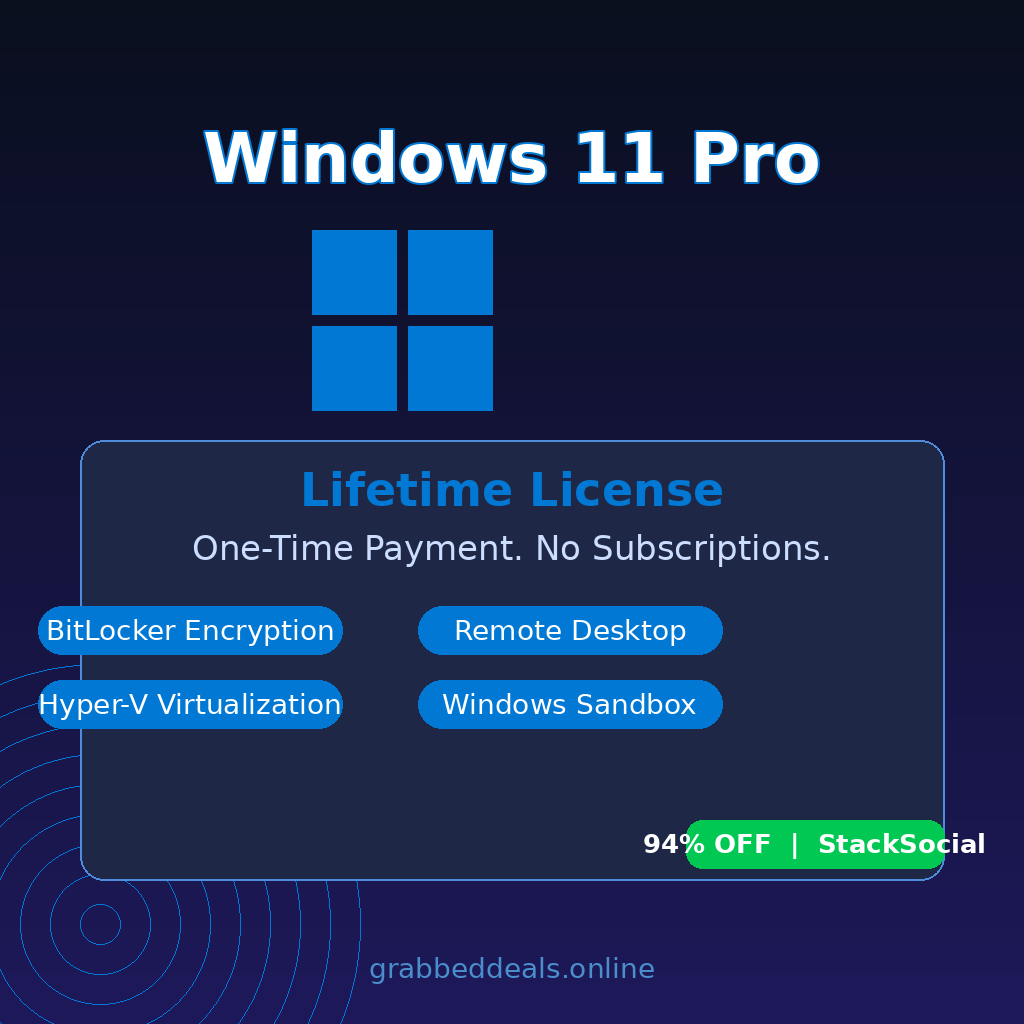
According to a 2026 feature breakdown on gHacks Tech News, the Pro edition ships with BitLocker drive encryption, Remote Desktop hosting, Hyper-V virtualization, Windows Sandbox, and Group Policy management built right in. These aren’t gimmicks. For anyone handling client data, accessing work machines remotely, or testing software safely, these features matter in the real world.
- Full BitLocker drive encryption for data security
- Remote Desktop host capability for remote work
- Hyper-V for running virtual machines natively
How Does Microsoft Windows 11 Pro Work?
The StackSocial deal delivers a lifetime digital license, not a subscription. Here’s what the process looks like from purchase to running PC:
- Purchase the deal on StackSocial. The price has been hovering around $13 to $15, down from the $199 retail price. Payment goes through the platform’s secure checkout.
- Receive your product key by email immediately after purchase. StackSocial delivers redemption codes instantly, so there’s no waiting around.
- Open Windows Settings on your PC. Navigate to Settings > System > Activation. Click “Change product key.”
- Enter the 25-character key you received. Windows will verify it, begin the upgrade or activation process, and prompt you to restart.
- Confirm activation. After the reboot, head back to Settings > System > About. It should now read “Windows 11 Pro” and show your activation status as active.
The whole process typically takes under ten minutes. No reinstalling Windows, no wiping your drive, no starting from scratch.
Tips for Using Microsoft Windows 11 Pro
Enable BitLocker on Day One. Most people set up Pro and never touch BitLocker. That’s a mistake. If your laptop gets stolen, an unencrypted drive is basically an open folder. Go to Control Panel > BitLocker Drive Encryption and turn it on before you do anything else. It runs quietly in the background once set up.
Set up Remote Desktop before you need it. The worst time to figure out Remote Desktop is when you’re sitting in a hotel room and need files from your home PC. Go to Settings > System > Remote Desktop, toggle it on, and note your PC name. Pair it with a VPN or your router’s port forwarding for access outside your home network.
Use Windows Sandbox for sketchy downloads. Pro includes a disposable virtual environment that resets every time you close it. Before running any unfamiliar installer or script, open Sandbox and run it there first. As Windows Central covered in their 2026 tips guide, this feature dramatically reduces the risk of malware reaching your actual system.
Redeem your key within 30 days. StackSocial’s terms state that unredeemed licenses can be returned for store credit within 30 days of purchase. Once activated, the sale is final. So redeem promptly, but test your hardware compatibility first.
Link your license to a Microsoft account. After activation, go to Settings > Accounts and sign in with a Microsoft account. This ties the license to your account digitally, so if you replace your motherboard down the road, you can reactivate through the troubleshooter without buying a new key.
Microsoft Windows 11 Pro Review: Pros and Cons
Getting a lifetime OS license for the price of a lunch is genuinely one of the better software deals floating around in 2026. That said, it’s worth going in clear-eyed.
Pros
- One-time payment for a lifetime license, zero recurring fees
- Genuine license delivered instantly via email from a Microsoft-listed partner
- Full Pro feature set including BitLocker, Remote Desktop, and Hyper-V
- 4.9 out of 5 stars from over 2,400 verified buyers on StackSocial
- Upgrade installs in minutes without wiping existing data
Cons
- Single-device license, non-transferable once activated
- Does not include Microsoft Office (sold separately)
- 30-day code redemption window requires prompt action
Top 5 Features of Microsoft Windows 11 Pro
1. BitLocker Drive Encryption
BitLocker encrypts your entire drive, making files unreadable to anyone who doesn’t have your credentials. If your laptop gets lost or the storage is physically removed and plugged into another machine, the data stays locked. For freelancers carrying client contracts or business owners with financial records on a laptop, this is the feature that justifies the Pro upgrade on its own.
2. Remote Desktop Hosting
Windows 11 Pro lets your PC act as a Remote Desktop host, meaning you can connect to it from any other device, anywhere. Remote in from your laptop at a co-working space, access files you forgot to sync, or support a family member’s PC without being there. Home edition can connect to remote desktops but cannot host one.
3. Hyper-V Virtualization
Hyper-V is Microsoft’s built-in hypervisor. It lets you run full virtual machines, other operating systems like Ubuntu or older Windows versions, without needing VirtualBox or VMware. Developers testing code across environments and IT folks spinning up lab setups will find this invaluable, and it’s already installed, just waiting to be enabled.
4. Windows Sandbox
Windows Sandbox creates a temporary, isolated desktop environment that spins up in seconds and resets completely when you close it. Run a suspicious file, test a browser extension, or preview an email attachment without touching your real system. Every session starts fresh with zero residue.
5. Group Policy Management
Group Policy lets you enforce system-wide settings across your PC, like blocking certain apps, controlling update behavior, or locking down the desktop for a shared computer. For small business owners managing a few machines, this is enterprise-level control without needing enterprise-level infrastructure.
Microsoft Windows 11 Pro in Action
If you want to see the entire activation process before you buy, this video walkthrough covers upgrading from Windows 11 Home to Pro step by step, including entering the product key and confirming activation. Worth three minutes of your time before you start.
Microsoft Windows 11 Pro Alternatives
Windows 11 Home
The version already on most consumer PCs. It covers the basics well for students, casual users, and gamers. The catch is no BitLocker, no Remote Desktop hosting, no Hyper-V, and no Group Policy. If you never need those features, Home is perfectly fine. If you do, you’ll hit a wall.
macOS Sequoia (Apple)
Apple’s operating system ships free with every Mac and includes solid built-in security. For users already in the Apple ecosystem, it’s a strong choice. For anyone tied to Windows-specific software, enterprise networks, or hardware flexibility, it’s not a realistic substitute.
Ubuntu 24.04 LTS
Ubuntu is free, open-source, and genuinely excellent for developers. It runs Hyper-V style virtualization through KVM and has strong security tooling. The tradeoff is compatibility: many commercial software tools, some creative apps, and most games still target Windows first.
Microsoft Windows 11 Pro Lifetime Deal: Our Verdict
If you’re running Windows 11 Home and already frustrated by its limitations, or setting up a new PC from scratch, this StackSocial deal removes every reason to hesitate. The license is genuine, the activation is fast, and the feature gap between Home and Pro is real enough to matter.
The sweet spot buyers here are remote workers who need Remote Desktop, developers who want Hyper-V without paying VMware prices, and small business owners who want BitLocker running on employee machines. For anyone in those categories, $13 to $15 for a lifetime Pro license is not a deal to overthink.
Ready to grab the deal? Microsoft Windows 11 Pro Lifetime License on StackSocial
Frequently Asked Questions (FAQ)
Q: Is Microsoft Windows 11 Pro worth it in 2026? Yes, especially at the StackSocial price point. If you need BitLocker encryption, Remote Desktop hosting, or Hyper-V, those features are not available in the Home edition. For power users and professionals, the upgrade pays for itself quickly.
Q: Does Windows 11 Pro have a free trial or free plan? No free trial exists for Windows 11 Pro. However, if your PC already runs an activated copy of Windows 11 Home, upgrading to Pro only requires a valid Pro key. The upgrade process itself is free; you’re paying for the license key.
Q: Who is Microsoft Windows 11 Pro best suited for? Remote workers who need to host Remote Desktop sessions, developers running virtual machines with Hyper-V, small business owners managing device security with BitLocker, and IT administrators using Group Policy to control workstations.
Q: How long is the Microsoft Windows 11 Pro lifetime deal available? StackSocial lifetime license deals tend to stay active for extended periods, but pricing can change without notice. The $13 to $15 price point has been seen repeatedly but is not permanent.
Q: Can I get a refund on the Microsoft Windows 11 Pro lifetime deal? Unredeemed licenses can be returned for store credit within 30 days of purchase. Once the product key is redeemed and activated, all sales are final. Test your hardware compatibility before activating.
Q: Will this license work if I upgrade my hardware later? The license is tied to one PC and is non-transferable once activated. If you make significant hardware changes, especially a motherboard swap, you may need to run the Windows activation troubleshooter. Linking your license to a Microsoft account beforehand makes reactivation much smoother.
Published by GrabbedDeals.online – Appsumo Deals | WP Themes & Plugins | DealFuel | Dealify | DealMirror | RocketHub | StackSocials | Others|