Last year I was paying for three separate tools every month: one for templates, one for subtitles, and one AI text-to-video generator that kept changing its pricing every quarter. It was messy, expensive, and honestly embarrassing for someone who writes about deals for a living. Then a colleague mentioned FlexClip was on AppSumo with a lifetime deal, and I finally stopped juggling. If you have been looking for a solid video editor tool that does not drain your bank account month after month, keep reading. Get Lifetime Deals
What Is FlexClip?
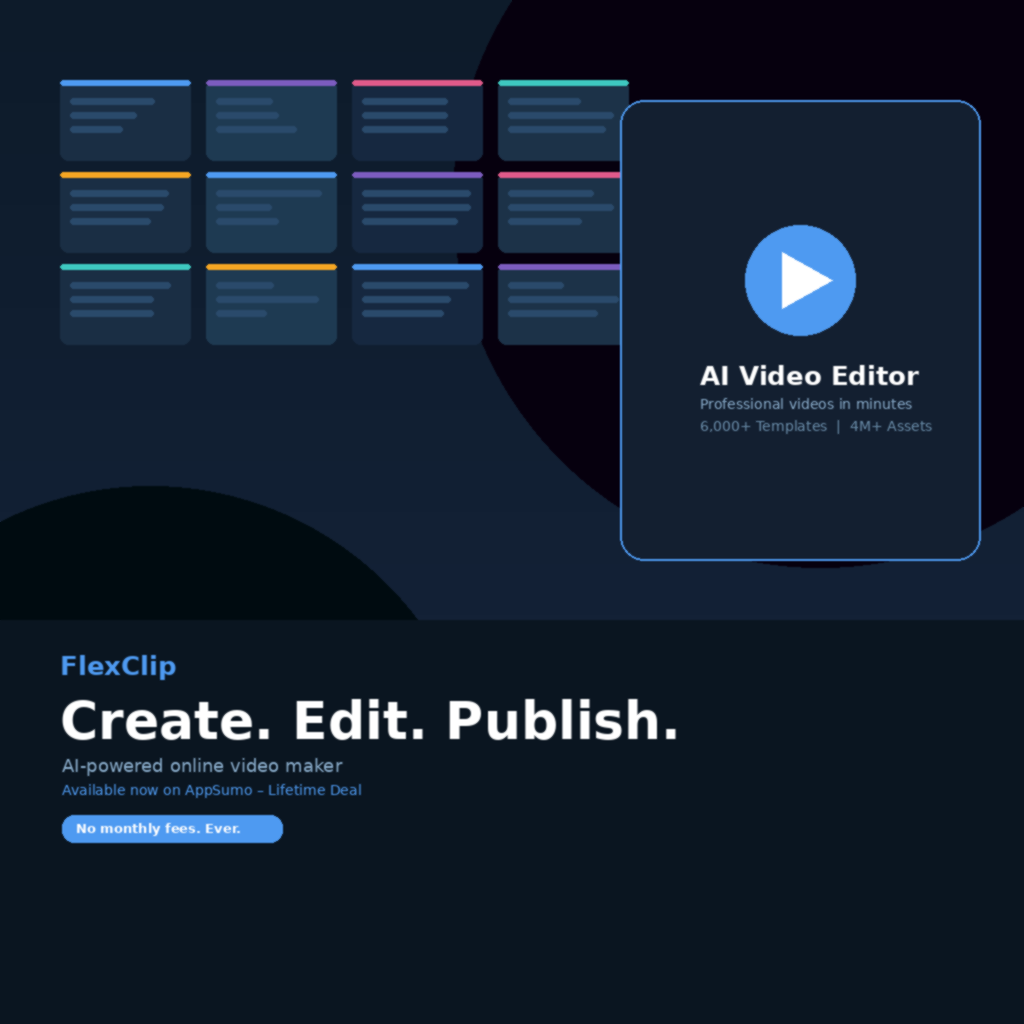
FlexClip is a browser-based AI video maker built by PearlMountain, a company with over a decade of experience in multimedia software. It sits squarely in the online video editor space, targeting content creators, small business owners, freelancers, and marketers who need professional-looking videos without the learning curve of something like Adobe Premiere or DaVinci Resolve.
The core problem it solves is simple: most people do not have hours to spend editing video. FlexClip lets you open a browser, pick a template, swap in your content, and export. No download, no install, no drama. You can explore FlexClip’s full feature breakdown directly on their official website to see just how far the product has come since its early days.
Key things it does well right out of the box:
- Text-to-video AI generation using models like Google Veo 3 and Kling AI
- Auto subtitle generation with support for 140+ languages
- Access to a stock library of 4 million-plus royalty-free videos, photos, and music tracks
How Does FlexClip Work?
The workflow is genuinely straightforward. Here is what a typical session looks like:
- Go to flexclip.com and log in. No software install needed, it all runs in your browser. Chrome and Edge both work well.
- Choose a starting point. You can either pick from 6,000-plus pre-designed templates or hit “New Project” to start blank. Templates are filterable by category: social media, marketing, education, product demos, and more.
- Swap in your content. Upload your own clips, photos, or text, or pull straight from the stock library. The drag-and-drop editor feels familiar, like a cross between Canva and a basic timeline editor.
- Apply AI tools as needed. This is where things get interesting. You can auto-generate subtitles, remove a background, add a voiceover using text-to-speech, or feed a script to the AI and let it build scenes for you.
- Export and share. Hit export, choose your resolution (720p on Tier 1, 1080p on Tier 2, 4K on Tier 3), and you are done. You can download directly or publish via a shareable link.
The whole process, start to finish for a short marketing video, takes me about 15 to 20 minutes. That used to take me half a morning with my old setup.
Tips for Using FlexClip
Tip 1: Start with a template even if you plan to change everything. The templates are not just pretty starting points. They are structurally sound, with proper timing, transitions, and spacing baked in. Starting from one gives you a solid foundation and saves a surprising amount of time on pacing.
Tip 2: Use the AI Script Writer before you touch the timeline. One thing most beginners skip: write your script inside FlexClip first using its built-in AI script tool, which works as a great social media video script generator. The tool drafts a script based on your topic, and FlexClip can then auto-match scenes to script segments. It cuts the creative block in half.
Tip 3: Take advantage of the auto subtitle feature for every video. This is the most underrated feature for small business owners and course creators. The AI subtitle generator creates accurate captions automatically and syncs them cleanly. Captions increase watch time significantly, and doing this manually in other tools can add 30 minutes to a project. As detailed in FlexClip’s official learning centre, the auto subtitle workflow also supports translation into dozens of languages, which opens up your content to global audiences.
Tip 4: Pair FlexClip with Canva for static graphics. FlexClip handles motion content brilliantly, but if you need custom static thumbnails or featured images, knock those out in Canva and import them. The two tools complement each other well rather than compete.
Tip 5: Do not skip checking your export resolution tier before you start. This was my own mistake when I first signed up. I built a full 3-minute product demo video and then realised my tier only exported at 720p. For anything going on YouTube or a client presentation, you want at least Tier 2 (1080p). Know your limits before you invest time in the project.
FlexClip Review: Pros and Cons
Spending time with FlexClip over the past few months has given me a clear picture of where it shines and where it falls short. Overall, it punches well above its price class.
Pros
- Zero installation: it runs entirely in your browser, which is great if you switch between devices
- The AI text-to-video feature saves hours on faceless content and explainer videos
- Auto subtitles and text-to-speech are genuinely accurate and fast
- The 4M-plus stock library means you rarely need to leave the platform for assets
Cons
- The timeline is single-track, which limits complex multi-layer edits
- Export speeds can slow down on longer 1080p or 4K projects
- Tier 1 (720p) is too restricted for anything serious: you really need Tier 2 at minimum
- AI generation credits are annual, not unlimited, so heavy users need to watch their usage
Top 5 Features of FlexClip
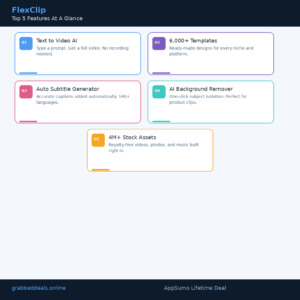
1. AI Text-to-Video Generator
Type a prompt or paste a blog post, and FlexClip’s AI builds a full video scene sequence. The platform now integrates models including Hailuo AI, Kling AI, and Google Veo 3 for higher quality generation. For content creators running faceless channels or marketers who need fast explainer content without recording a single frame, this is the headline feature.
2. 6,000-Plus Video Templates
The template library covers everything from Instagram reels and YouTube intros to product demo videos and educational slideshows. Crucially, the quality in 2026 is noticeably better than a few years ago. Many templates look like they came out of a professional video production agency, which is a real win for small teams without in-house designers.
3. Auto Subtitle and Translation
This tool handles the video captioning workflow better than most standalone subtitle tools I have tried. It transcribes audio accurately, syncs captions to the timeline, and lets you translate into 140-plus languages. For anyone producing content for international audiences or accessibility compliance, this alone justifies the price.
4. AI Background Remover
Upload a clip with a messy background and FlexClip isolates your subject cleanly in one click. This is especially useful for product videos and talking-head content. No green screen, no complicated masking. The AI background removal tool integrates directly into the edit timeline rather than being a separate export step.
5. 4M-Plus Royalty-Free Stock Library
Having stock videos, photos, and music tracks built directly into the editor is a bigger deal than it sounds. Switching between browser tabs to grab an asset, download it, re-upload it, and then trim it adds up over dozens of projects. FlexClip keeps everything inside one workspace, with premium-quality footage included even on paid tiers.
FlexClip in Action
If you want to see the editor running live before committing to the deal, this beginner walkthrough by a creator on YouTube does a solid job covering the core editing flow and AI features in one go. It is a good sanity check if you are on the fence.
FlexClip Alternatives
Canva Video Editor
Canva’s video features are decent for simple social clips, especially if you are already deep in the Canva ecosystem. But it lacks the dedicated video AI tools (text-to-video, auto-subtitle generation) that FlexClip has natively. If you need a broader design-first platform that also handles occasional video tasks, Canva fits better. For video-first workflows, FlexClip wins.
Clipchamp (Microsoft)
Clipchamp is free and built into Windows 11, which makes it a natural first stop for beginners. It handles basic online video creation and trimming well. However, its AI capabilities and template depth are nowhere close to FlexClip’s 2026 feature set, and there is no lifetime deal option. It suits light occasional editors, not regular content producers.
InVideo AI
InVideo is a legitimate competitor in the AI-powered short-form video creator space, particularly strong for text-to-video workflows. Its monthly pricing runs between $25 and $60 per month depending on the plan. On a pure value basis, FlexClip’s AppSumo lifetime deal at a one-time cost beats InVideo’s subscription model significantly for anyone planning to use it long-term.
FlexClip Lifetime Deal: Our Verdict
If you are looking for the best AI video editor lifetime deal for small business content creators in 2026, this is a strong candidate. The combination of AI text-to-video, auto subtitles, a massive stock library, and 6,000-plus templates inside a single browser-based tool covers most video production needs without requiring any technical background.
One honest note: Tier 1 at $69 is limiting. The 720p export cap makes it impractical for anything beyond phone-sized viewing. Tier 2 at $138 hits the sweet spot for most users with 1080p and expanded storage. Tier 3 at $207 is the right call if you need 4K exports and maximum storage for client work.
Ready to grab the deal? Get FlexClip on AppSumo
Frequently Asked Questions (FAQ)
Q: Is FlexClip worth it in 2026? Yes, particularly with the AppSumo lifetime deal. The platform has improved significantly with AI integrations including Google Veo 3 and Kling AI. For anyone producing regular video content for social media, marketing, or education, it delivers strong value at a fraction of competitor pricing.
Q: Does FlexClip have a free trial or free plan? FlexClip does have a free tier that lets you create up to 12 projects under 10 minutes each, with a watermark on exports. It is a good way to test the editor before committing to the lifetime deal. No credit card is required to start.
Q: Who is FlexClip best suited for? Primarily freelancers, solopreneurs, social media managers, coaches, and small business owners who need to produce consistent video content quickly without hiring a video editor or learning complex desktop software.
Q: How long is the FlexClip lifetime deal available? AppSumo lifetime deals have a limited window and typically close once the campaign ends. There is no official end date published, but these deals rarely stay open indefinitely. Checking the AppSumo listing directly is the safest way to confirm current availability.
Q: Can I get a refund on the FlexClip lifetime deal? Yes. AppSumo offers a 60-day money-back guarantee on lifetime deal purchases. That is enough time to run real projects and evaluate whether the tool fits your workflow before your purchase becomes final.
Q: Does FlexClip work on Mac and Windows? FlexClip runs entirely in your browser, so it works on any operating system including Mac, Windows, and Linux. There is nothing to download or install, and your projects are saved in the cloud automatically.
Published by GrabbedDeals.online – Appsumo Deals | WP Themes & Plugins | DealFuel | Dealify | DealMirror | RocketHub | StackSocials | Others|